
When a new user first enters Covet after sign up, they are taken to this dashboard page:
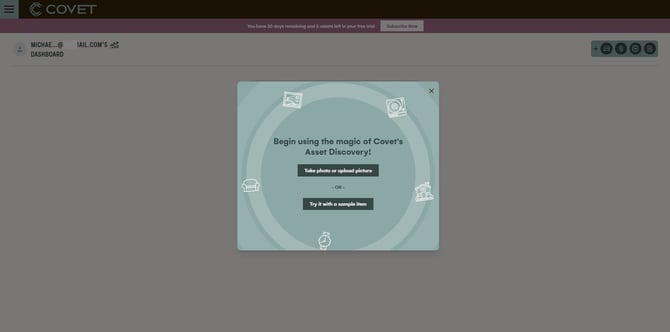
To first go through the process with a sample asset click "Try it with a sample item" and you will be given the choice to try it with either a watch or a bag. It doesn't matter which you choose to use for the test, the process is the same. Click on the image for either to be taken to the next step.
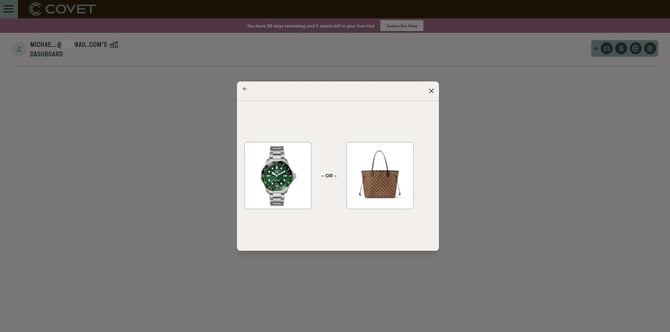
Clicking on one of the images simulates taking a photo of an actual item. Put another way, when you do this process one of your real assets, you will be using the camera on your phone to take a picture of the item (or uploading an image from your device, either works). Clicking on one of these sample images simulates that photo capture/upload process. Once you click one of the two choices, Covet's AI will fetch data (information) about the item. This can take a few moments.
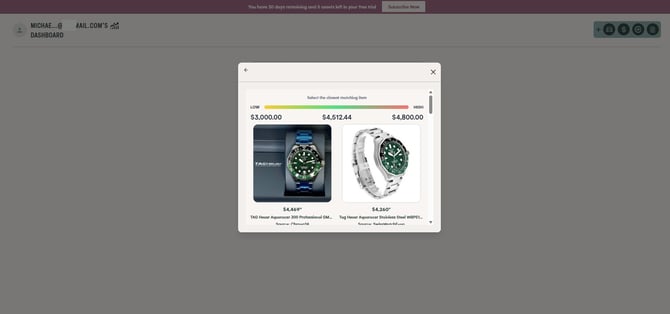
Once Covet's AI finds information about the item it displays the values it found for the item in a range at the top and below shows "like items" that it found to aid in capturing information such as description and specific market value. Scroll through the results and choose the one that is most like your actual item to use the description and value of that item. If none of the results are exactly like yours, just pick the one closest and you can modify the captured information in a later step.
After selecting the item most like yours (in this case "yours" is the sample item so we're still pretending at this point), Covet will gather market insights about the item. This can take a few moments.
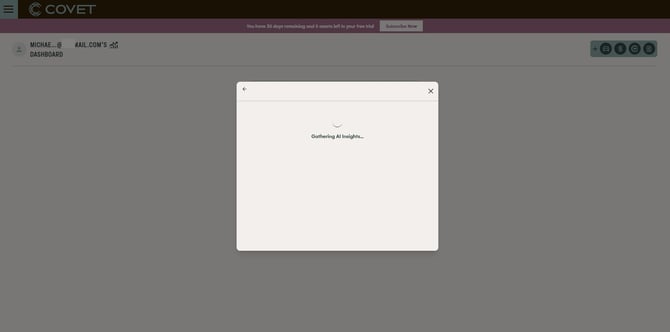
Covet will then display an overview of the item, brand, category, source of pricing, a buy/sell/hold recommendation and a detailed reasoning behind the recommendation.
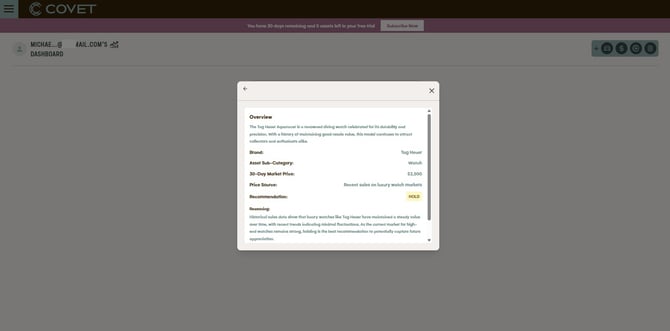
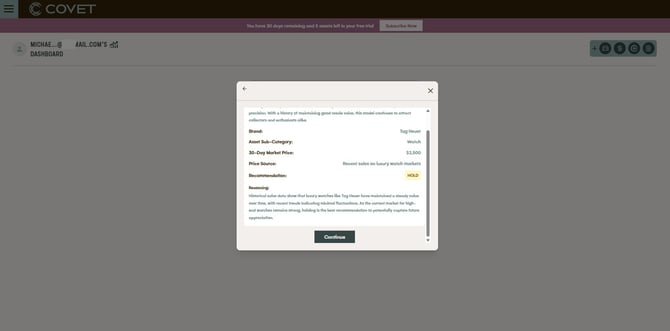
Scroll to the bottom of this asset insights view to review all it offers and when you're finished click "Continue."
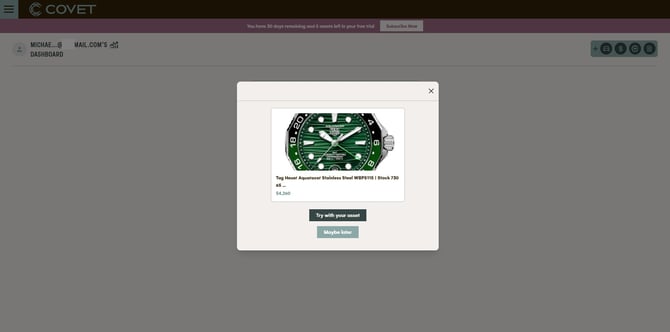
Covet will then show a depiction of the asset's data card. Again, this is a sample (fake) asset so this screen will differ slightly from one of your real assets, but it shows the basic card for your understanding. Will a real asset you will be given the option to add the asset to your Covet vault at this point, but for this sample asset you may either select "Try with your asset" to begin capturing one of your real assets or "Maybe later" to be taken back to the main dashboard page (first image in this article) which will prompt you start.
Note: Once you have added your first real asset, this sample process will no longer be presented to you.
-End Article-
Covet does not provide any legal, investment, accounting, financial, and/or tax advice. The Covet site includes access to software and self-help materials, which are not substitutes for the advice of an attorney, financial advisor and/or accountant.