
There are multiple ways to enter physical assets (sometimes called tangible or personal property) into Covet. All methods will leverage AI to search for matching items and a value range and return examples from which you can pick the best match to your item, thus auto-populating the item title, description and value fields in Covet. (Note: See also the article "Why are asset descriptions important in Covet?"
When you first sign up for Covet, you will be presented with this page, directing you to enter your first asset.
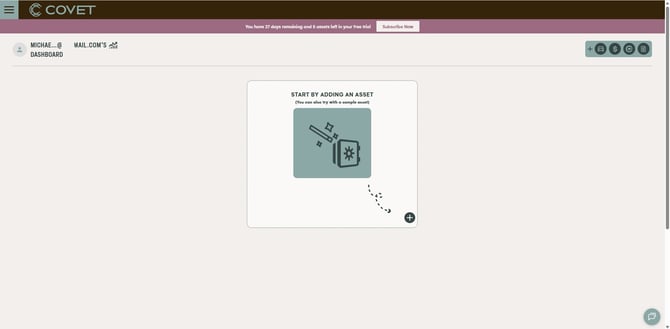
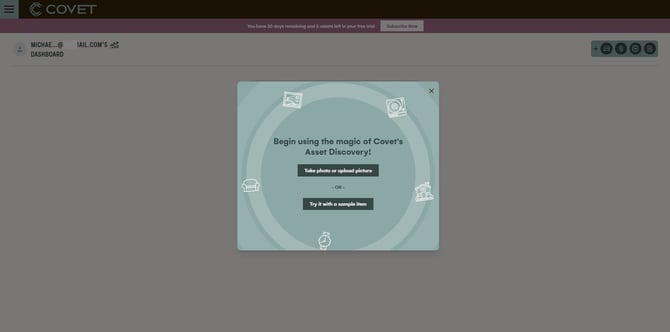
You may click anywhere in this popup window after which you will be given the choice to enter your own asset either by taking a photo or uploading a photo, or alternatively you can begin with entering a sample asset. (See article "How do I enter a sample asset?" To enter your own asset, click on the "Take a photo or upload picture" button.
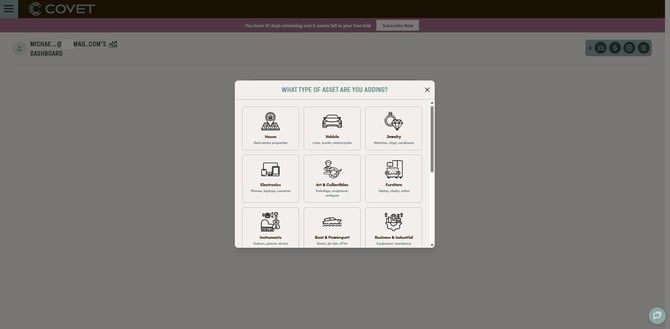
The next window will ask you to choose what type of asset you are entering.
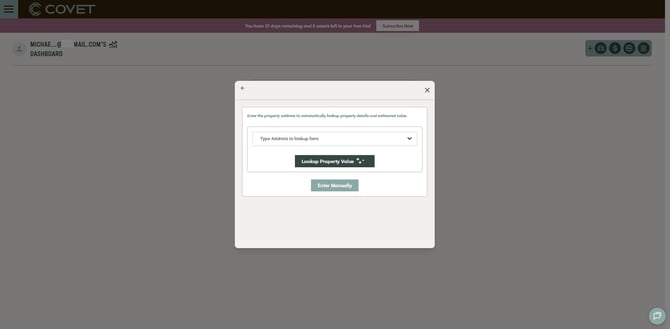
If you are entering your home choose "House" and you will be taken to this next window. Enter the address of the property and Covet will find a match. Click on the match and click "Lookup Property Value." Covet's AI will fetch market data. Alternatively you can click "Enter Manually" and enter the properties information yourself. If you choose the manual method, Covet's AI will continue to monitor the value of your property each day provided the address information you enter matches the address available in the MLS.
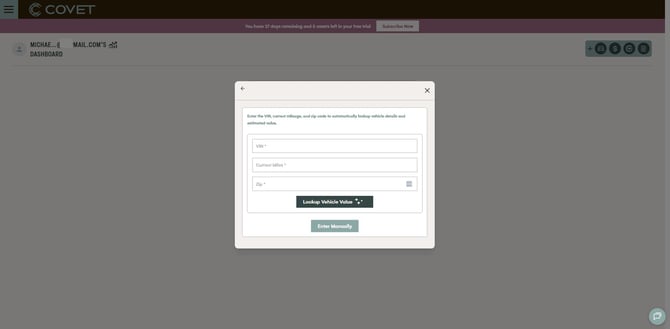
If you are entering a car or truck, at the Asset Type window (see "What type of asset are you adding" image above) select "Vehicle" and you will be taken to this window (below). Enter the vehicle's VIN (vehicle identification number, usually found on a plate under the windshield on the drivers side or on the vehicle's registration or title), the mileage and your zip code and then click "Lookup Vehicle Value." Covet's AI will then fetch market data on your specific vehicle and populate the description and values.
For all other types of physical assets (i.e. jewelry, collectibles, instruments, etc.), first choose the appropriate category. Depending on whether you are using your phone/mobile device or a laptop/desktop, you will be prompted to either take a photo of the item or upload a photo of it (taking a picture of an item with a laptop or desktop camera is not exactly convenient or effective, thus the upload option).
If on phone/mobile device you will see something like this:
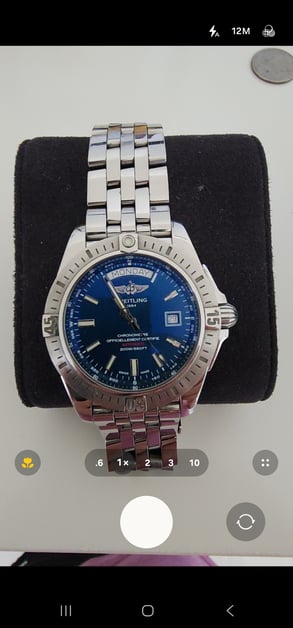
Take the photo using your phone's shutter button and you will advance to the next step.
If uploading from a laptop/desktop, you will see the following window:
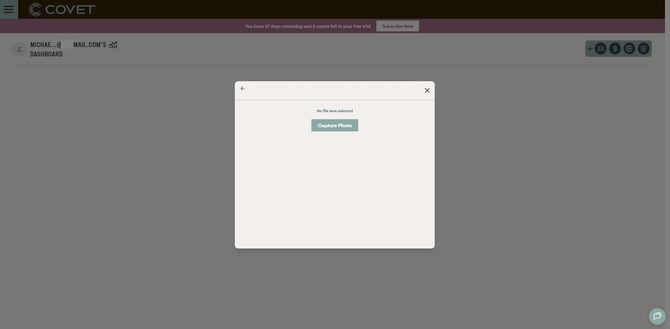
Click on "Capture Photo" and navigate on your computer to the location of the photo of the item, select it, and you will advance to the next step.
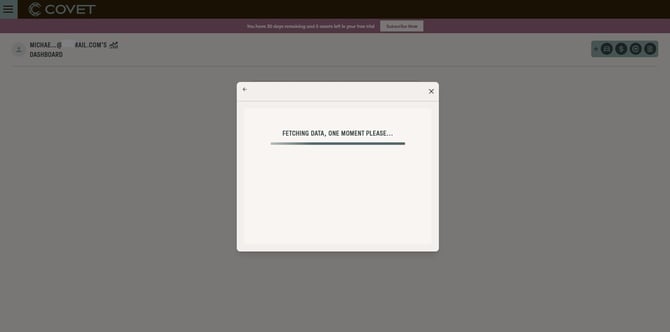
In either case, Covet's AI will begin fetching data. This can take a few moments.
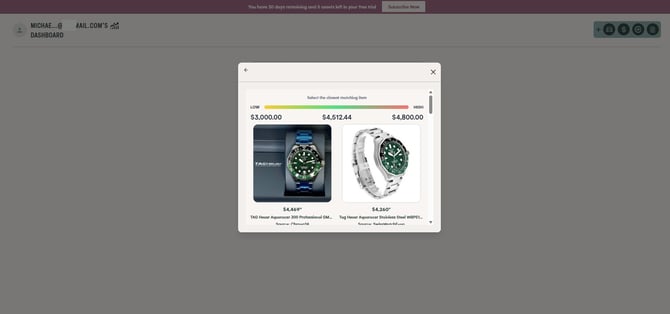
Once Covet's AI finds information about the item it displays the values it found for the item in a range at the top and shows "like items" below that it found to aid in capturing information such as description and specific market value. Scroll through the results and choose the one that is most like your actual item to use the description and value of that item. If none of the results are exactly like yours, just pick the one closest and you can modify the captured information in a later step.
After selecting the item most like yours, Covet will gather market insights about the item. This can take a few moments.
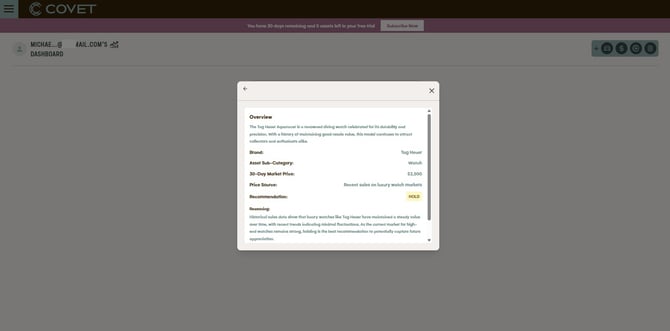
Covet will then display an overview of the item, brand, category, source of pricing, a buy/sell/hold recommendation and a detailed reasoning behind the recommendation.
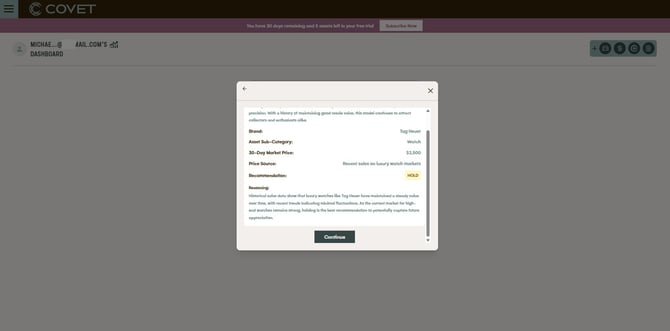
Scroll to the bottom of this asset insights view to review all it offers and when you're finished click "Continue."
Covet will then show a depiction of the asset's data card. Review it for accuracy and, if it is good, click "Add to My Vault." Covet will then add the assets value to your vault value total, along with AI insights about the item, and then will add the item to your estate documents, applying your default allocation.
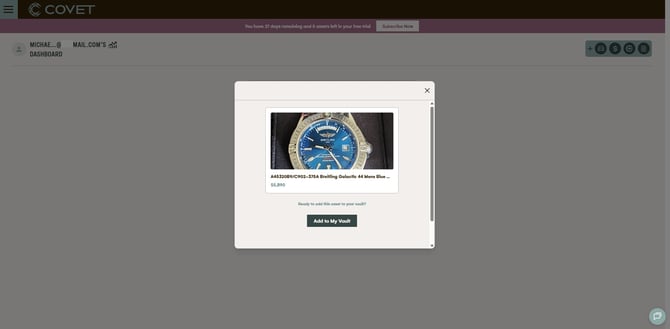
After that, if you would like to make any changes to the asset, you can go to Menu > Assets and click on the asset card's edit icon in the lower righthand corner. The asset card will open and, using tools at the top of the card, you can:
(From left to right)
- Add change photos
- Change allocation (specific to the item)
- Get updated AI insights and recommendations
- Fetch data on similar items again (to gather market data in the moment as opposed to waiting for the nightly refresh)
- Edit the asset's details
- Delete the asset
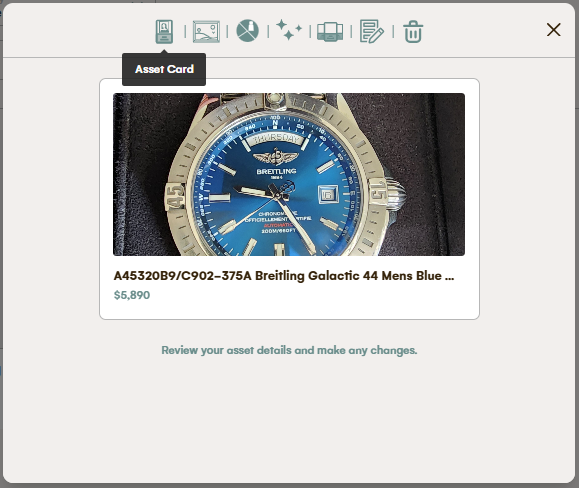
For more information on the features of asset cards, see article "How do I make changes to an asset in Covet?"
-End Article-
Covet does not provide any legal, investment, accounting, financial, and/or tax advice. The Covet site includes access to software and self-help materials, which are not substitutes for the advice of an attorney, financial advisor and/or accountant.