
Because there are different types of assets that can be tracked and protected in Covet, there are different ways to update or make changes to your assets, depending upon the asset in question. In this article we will explain how to make changes to physical assets (including houses, vehicles, and other physical assets), bank accounts, crypocurrencies, and digital files, in that order.
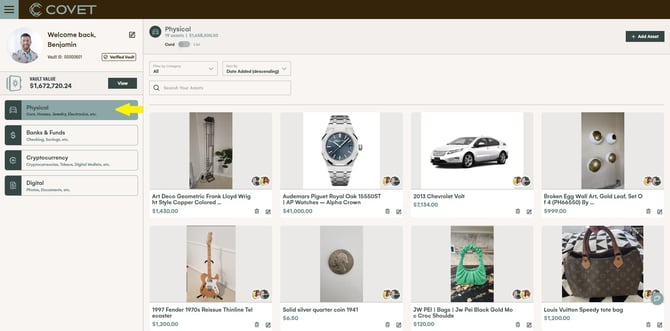
First step in updating or changing the details of any asset is to go to the Menu in the upper lefthand corner and then click on Assets. This will open the Asset page. The asset page will default to Physical asset category being selected (see yellow arrow in image below) and all your physical assets will be shown in the collection window.
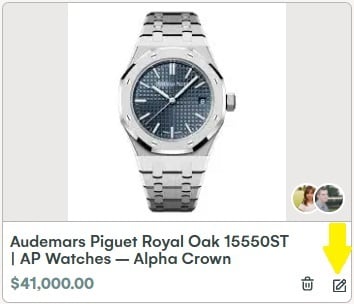
To edit a particular asset (update or make changes as well as other asset-specific features), click on the edit icon in the lower righthand corner of the asset card (yellow arrow in image below).
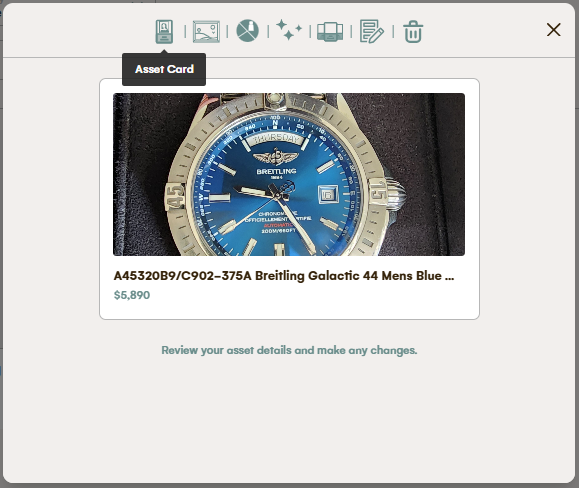
Now will specifically look at Physical Assets (excluding houses and vehicles which are addressed later below). Clicking the edit icon will open up the Asset Card. Along the top of the asset card, you will see 7 icons. Each of these opens a different function. The fist is simply this "Asset Card" view.
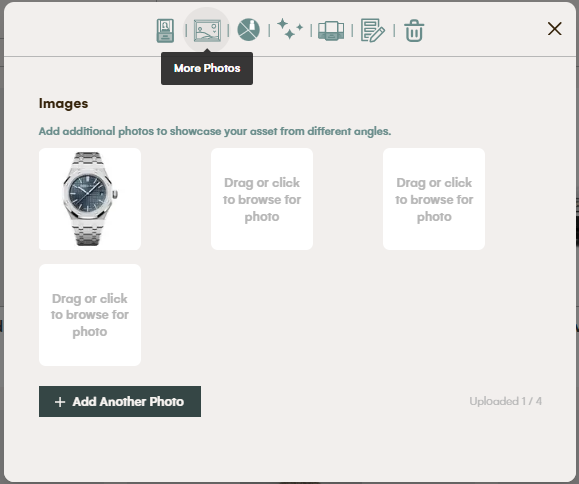
Moving left to right, the next icon allows you to upload additional photos or remove and replace photos.
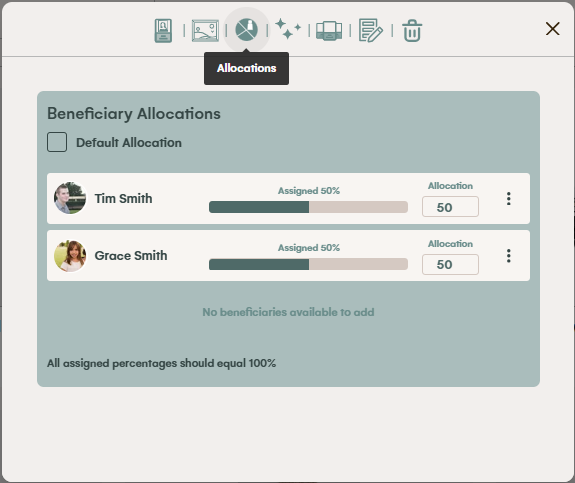
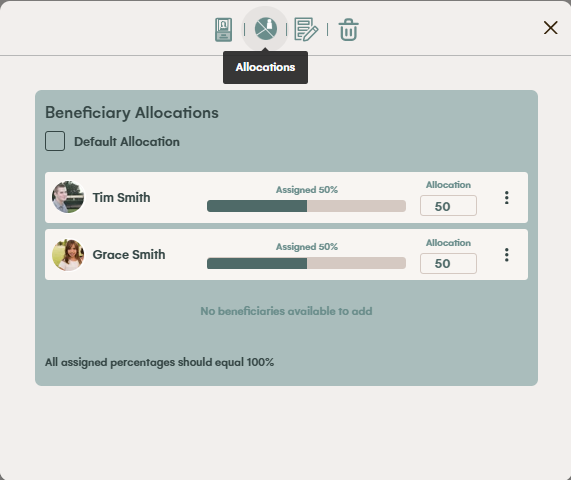
The third from left icon allows you to adjust the allocation for this particular asset. Note: Changes made here do not affect your default allocation settings, which are found under Menu > Allocations. Clicking the box marked "Default Allocation" in the upper left will apply your default allocation to this asset and will reflect this in your estate documents. Uncheck the box if you want to set an allocation for this specific asset
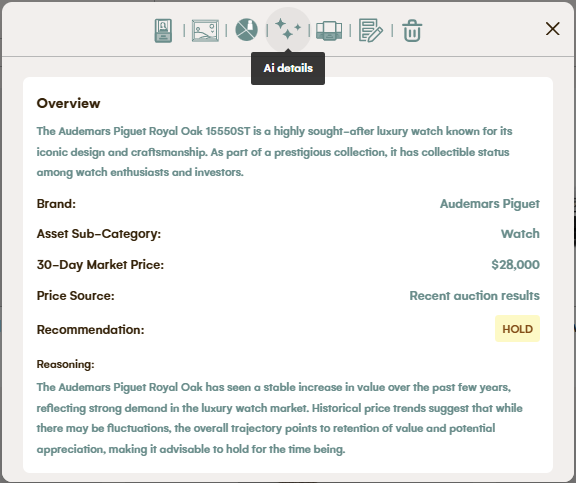
The fourth from left is AI Details. Clicking on this icon activates Covet's AI to do a fresh analysis of market data on this particular asset (rather than wait for the nightly refresh).
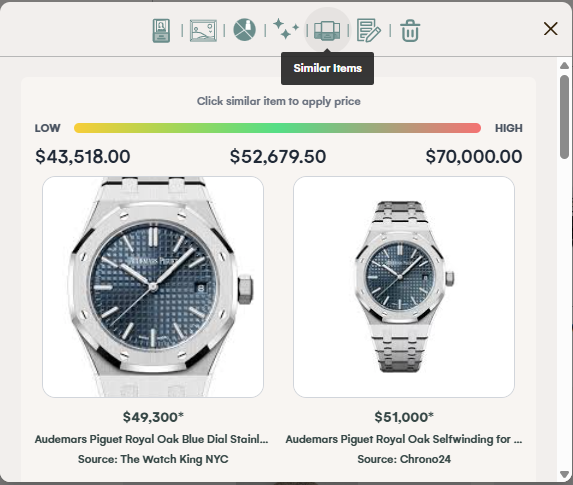
Fifth from left is Similar Items. This icon activates Covet's AI to refresh the search for like items. This is helpful when you want to know immediately what other items like yours are out there in the marketplace, how the items are being described and to recapture the current market valuation data. Note: this is automatically refreshed each night for all items and the results of the latest market searches can be reviewed and accepted or rejected on the Vault Trends page.
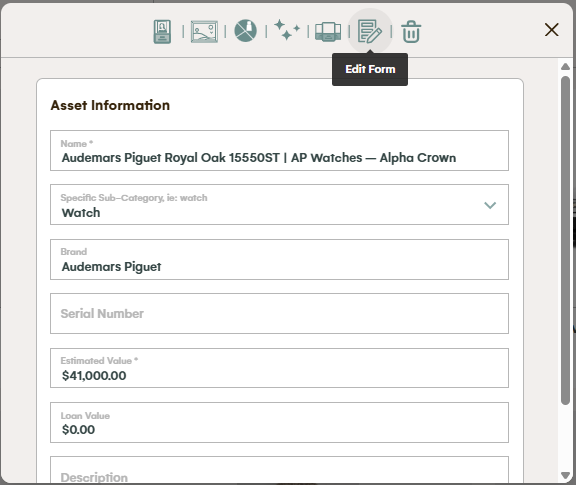
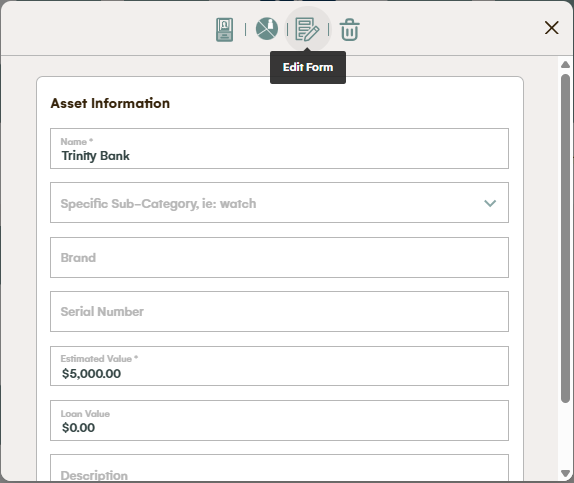
The next, sixth from left, is Edit Form icon. Here you can make any changes you desire to the information that was previously populated regarding this asset. Most Covet users begin with using the photo capture feature to lookup similar items, choose the item that most closely matches their item, and then refine the information to most relevant to their asset using this form.
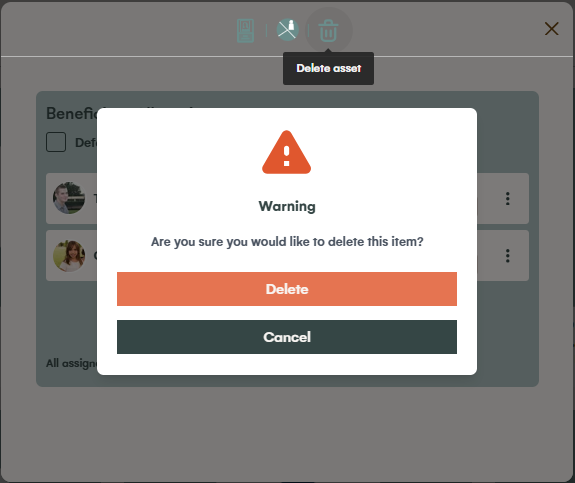
Finally, the last icon all the way to the right allows you to delete an asset. Perhaps you've sold the asset or want to remove it from being cataloged and protected for some reason. Don't worry, deleting an asset is a two-step process so clicking this button once, will not result in the asset being deleted. You must first click the delete (trashcan) icon and then click the Delete button to permanently remove the asset. Note: Deleted assets are automatically removed from estate documents, but if you have printed and signed (and/or) notarized any documents, the deleted item is obviously not removed from those hard copies. If you want to remove the item from your estate planning, you should reprint and resign those documents and destroy the old. Consult an estate planning attorney if you have any questions.*
Physical - House(s):
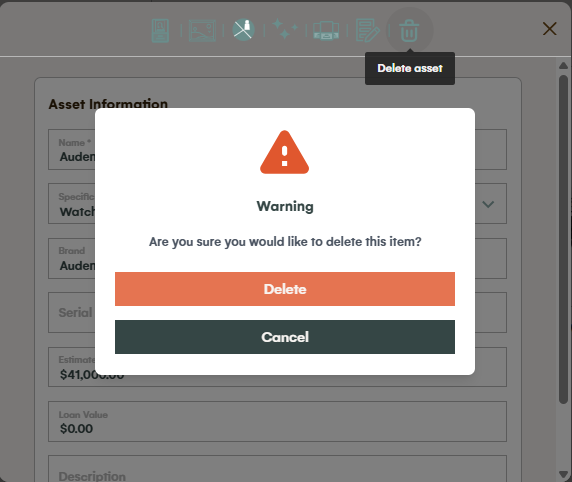
Next we'll look at a house, which is another kind of physical asset. Clicking on the same edit icon in the lower righthand corner will open the house's asset card. Asset cards for houses/property are designed similar to other physical assets with the same feature icons at the top with the exception of the Similar Items icon. The Similar Items icon is missing from the house asset card because Covet uses a different database to lookup home values. House values are refreshed each night (like all other assets). You can add/update photos, adjust allocations, get real-time AI insights and recommendations, or edit the details about the home in the edit form. And of course you can delete it if need be.
Physical - Vehicles:
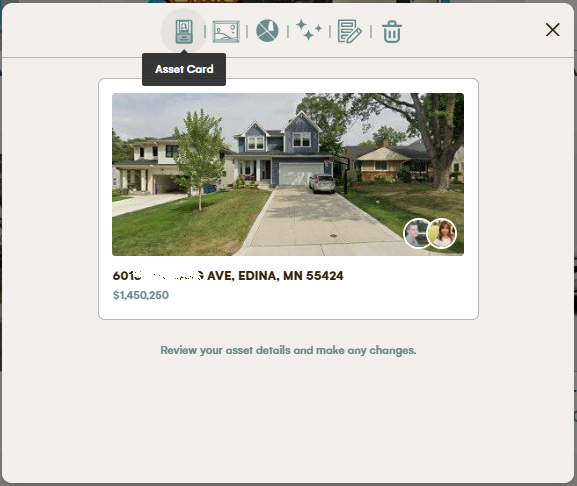
Vehicle asset cards function in very similar was to physical assets and houses. Like houses, they do not have a Similar Items feature because Covet uses a separate database for looking up valuations of vehicles.
Banks, Funds and other financial/monetary accounts:
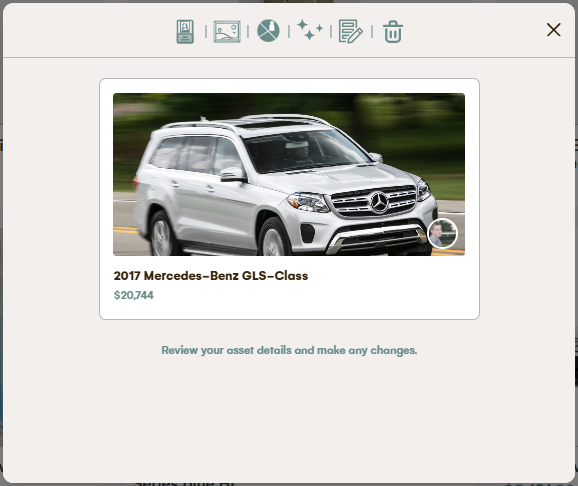
Starting as before (above) at the main Assets page, click on the Bank and Funds category to open the list of bank accounts you've connected in Covet. And like other assets, click on the edit icon in the lower righthand corner of a particular bank account to open its asset card.
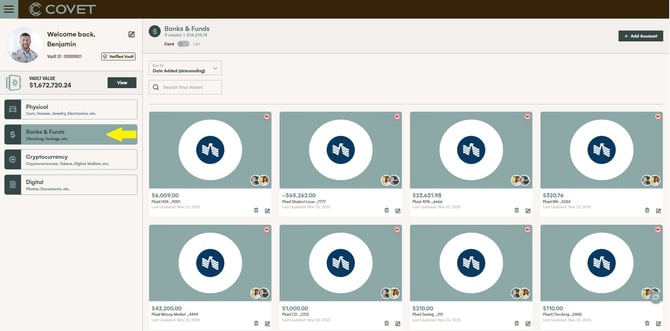
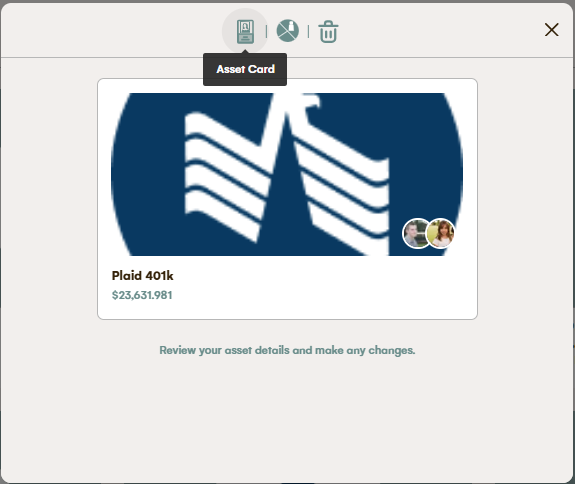
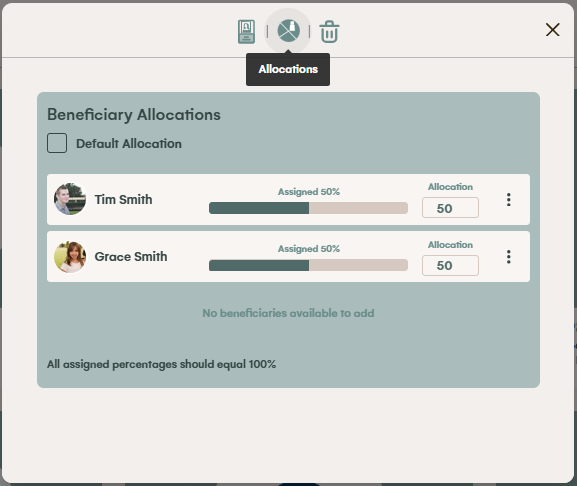
Banks that are connected automatically via Plaid have only three feature icons at the top. They are:
The basic asset card view...
The allocations view where you can make changes/updates to allocations for this specific bank account (does not affect default allocation settings which are found under Menu > Allocations)...
And the delete feature which allows you to delete the account from Covet...
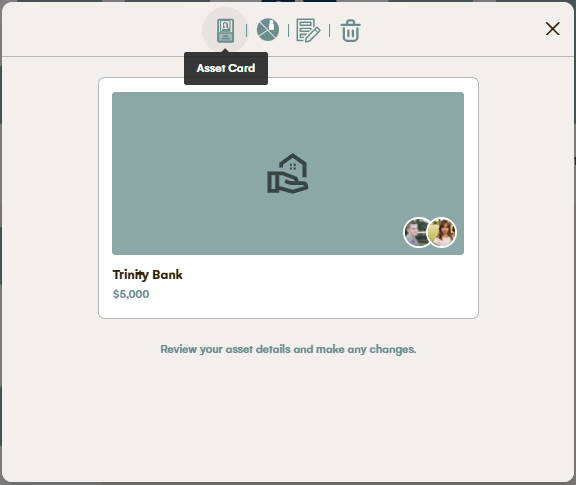
For bank accounts that have been manually entered (some banks are not available through Plaid (though Plaid has connections for over 12,000 financial institutions), the feature icons list is the same, with one exception (2nd image below) - the Edit Form feature is available sin
Cryptocurrencies:
Next is Crypocurrencies, which are manually-entered assets. Crypto asset cards open the same as others, by clicking on the category on the left and then on the individual assets edit icon in the lower righthand corner of the card.
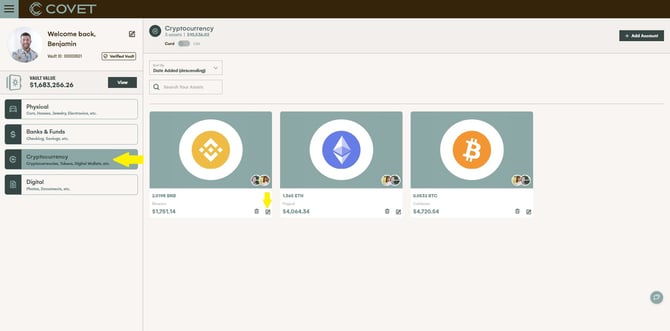
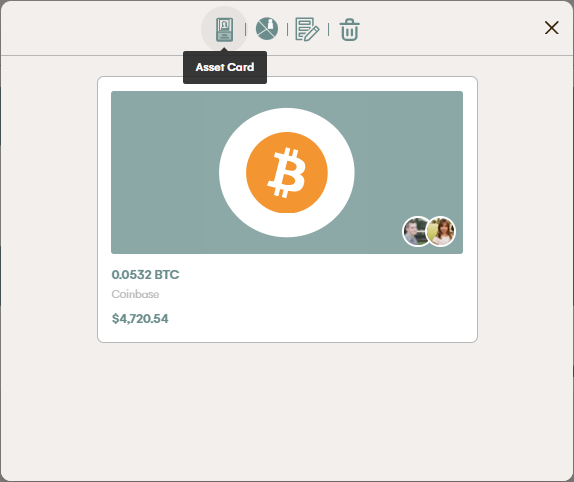
When a Cryptocurrency Assset Card is opened, the feature icons at the top are similar in function to the other assets types above.
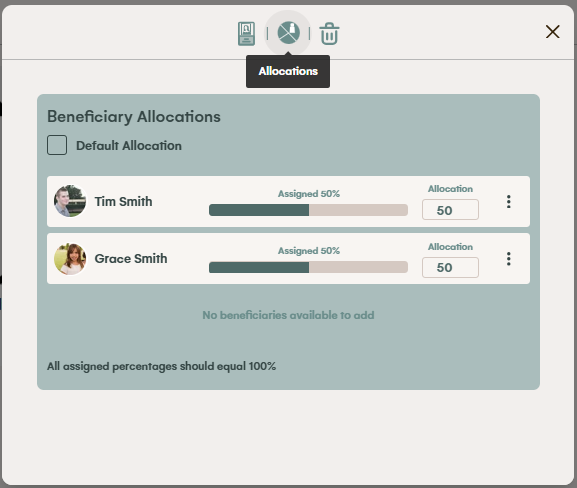
They are Allocations...
The edit form...
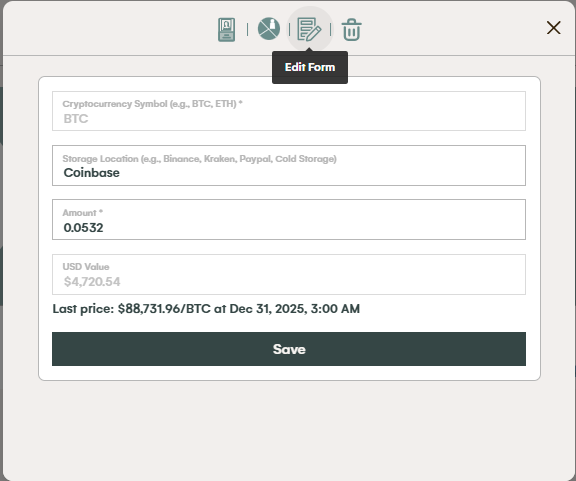
and Delete icon, which functions like the other asset types...
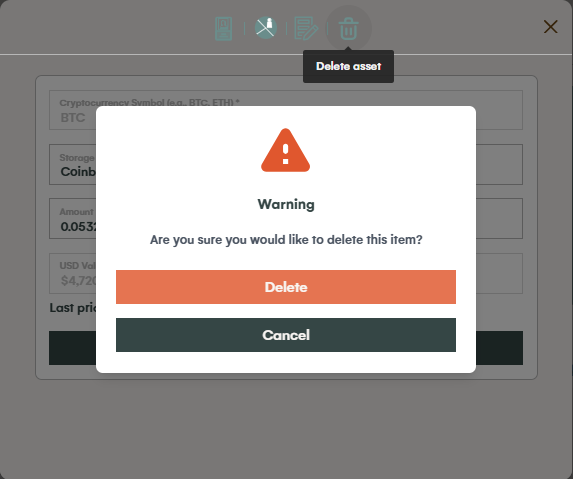
Digital Files:
The last asset category is Digital Files. For more information on the kinds of "assets" that can be stored and protected here, see the article "What kinds of digital files can I save in Covet?"
As with other categories above, click on the Digital Files category on the left of the Assets page and then click on the edit icon in the lower righthand corner of each asset card to open it.
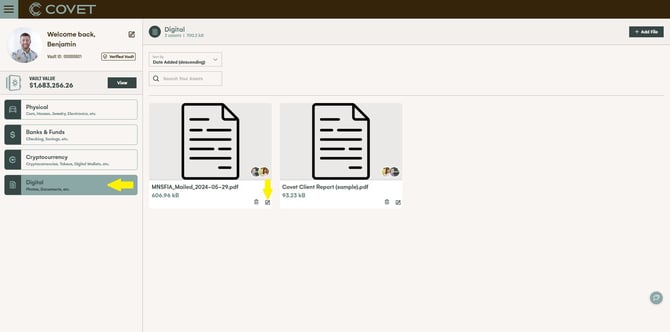
The feature icons at the top of the Digital File asset card are Allocations and Delete, both of which function as they do for all the other asset types above.
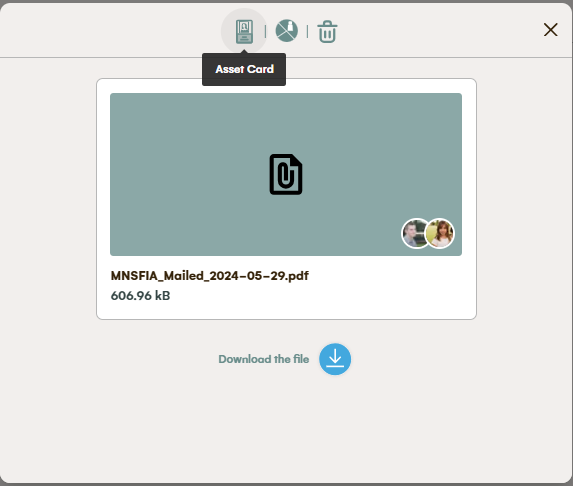
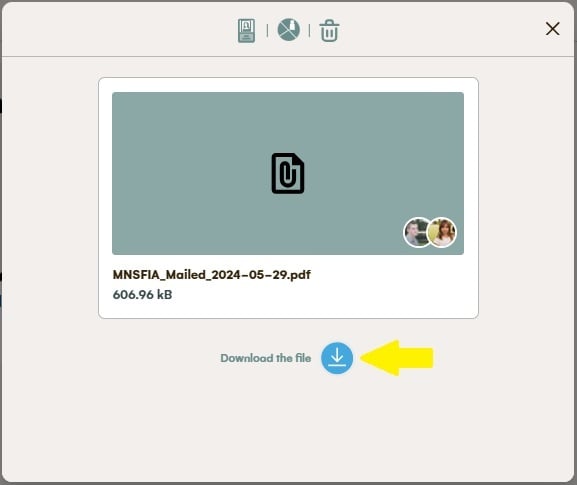
If you want to download a file you've previously uploaded to Covet, you can do so by clicking the "Download the file" button on the asset card.
See also the article "How do I enter a physical asset?"
-End of Article-
*Covet does not provide any legal, investment, accounting, financial, and/or tax advice. The Covet site includes access to software and self-help materials, which are not substitutes for the advice of an attorney, financial advisor and/or accountant.